# Record and Snapshot
## Encode
Encode setting is to set IPC encode mode, resolution, bit stream type and etc
From Main menu->Setting->System->Encode, you can see the following interface.
* Channel: Select the channel you want.
* Type: Please select from the dropdown list.
There are three options: regular/motion detect/alarm.
You can set the various encode parameters for different record types.
* Compression: System supports H.264, MPEG4, MJPEG and etc.
* Resolution: The mainstream resolution type is IPC’s encoding config.
* Frame rate: It ranges from 1f/s to 25f/s in NTSC mode and 1f/s to 30f/s in PAL mode.
* Bit rate type: System supports two types: CBR and VBR. In VBR mode, you can set video quality.
* Quality: There are six levels ranging from 1 to 6. The sixth level has the highest image quality.
* Video/audio: You can enable or disable the video/audio.
Please note, once you enable audio function for one channel,
system may enable audio function of the rest channels by default.
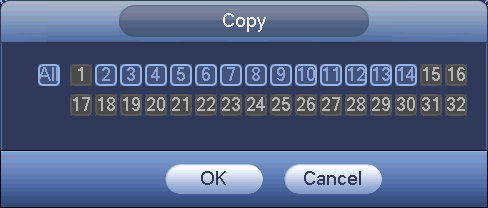
* Copy: After you complete the setup, you can click Copy button to copy current setup to other channel(s).
You can see an interface is shown as in Figure 4-59.
You can see current channel number is grey.
Please check the number to select the channel or you can check the box ALL.
Please click the OK button in respectively to complete the setup.
Please note, once you check the All box, you set same encode setup for all channels.
Audio/video enable box, overlay button and the copy button is shield.
 ## Overlay
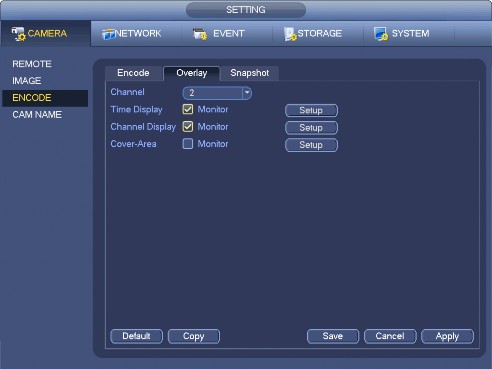
Click overlay button, you can see an interface is shown below.
* Cover area: Here is for you to cover area section.
You can drag you mouse to set proper section size.
In one channel video, system max supports 4 zones in one channel.
You can set with Fn button or direction buttons.
* Preview/monitor: The cover area has two types. Preview and Monitor.
Preview means the privacy mask zone can not be viewed by user when system is in preview status.
Monitor means the privacy mask zone can not be view by the user when system is in monitor status.
* Time display: You can select system displays time or not when you playback.
Please click set button and then drag the title to the corresponding position in the screen.
* Channel display: You can select system displays channel number or not when you playback.
Please click set button and then drag the title to the corresponding position in the screen.
## Overlay
Click overlay button, you can see an interface is shown below.
* Cover area: Here is for you to cover area section.
You can drag you mouse to set proper section size.
In one channel video, system max supports 4 zones in one channel.
You can set with Fn button or direction buttons.
* Preview/monitor: The cover area has two types. Preview and Monitor.
Preview means the privacy mask zone can not be viewed by user when system is in preview status.
Monitor means the privacy mask zone can not be view by the user when system is in monitor status.
* Time display: You can select system displays time or not when you playback.
Please click set button and then drag the title to the corresponding position in the screen.
* Channel display: You can select system displays channel number or not when you playback.
Please click set button and then drag the title to the corresponding position in the screen.
 ## Snapshot
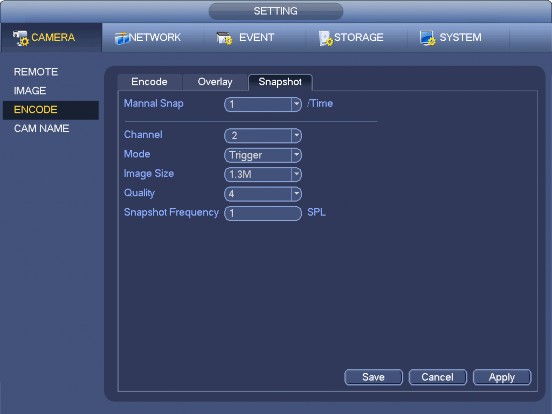
Here you can set snapshot mode, picture size, quality and frequency.
* Snapshot mode: There are two modes: regular and trigger. If you set regular mode, you need to set snapshot frequency. If you set trigger snapshot, you need to set snapshot activation operation.
* Image size: Here you can set snapshot picture size.
* Image quality: Here you can set snapshot quality. The value ranges from 1 to 6.
* Interval: It is for you to set timing (schedule) snapshot interval.
## Snapshot
Here you can set snapshot mode, picture size, quality and frequency.
* Snapshot mode: There are two modes: regular and trigger. If you set regular mode, you need to set snapshot frequency. If you set trigger snapshot, you need to set snapshot activation operation.
* Image size: Here you can set snapshot picture size.
* Image quality: Here you can set snapshot quality. The value ranges from 1 to 6.
* Interval: It is for you to set timing (schedule) snapshot interval.